
_mVFFaHUZhS.webp)
Managing employee time off is one of the most underestimated HR challenges in modern workplaces. Without a centralized, visible system, teams end up with scheduling conflicts, missed deadlines, and frustrated employees who feel like their time-off requests fall into a black hole.
- Outlook vacation calendars give managers real-time visibility into employee availability, reducing scheduling conflicts and planning delays.
- Time off Manager 365 automates leave requests, approvals, and balance tracking within Microsoft 365, saving HR time and effort.
- Outlook and Microsoft Teams integration keeps approved leave synced across shared calendars, improving collaboration and transparency.
- A centralized vacation calendar helps organizations plan resources better, prevent overlapping absences, and maintain business continuity.
That’s where a vacation calendar in Outlook becomes a game-changer.
Microsoft Outlook is already the hub for most professionals’ work communication. Adding a robust vacation and time off management layer like Time off Manager 365 directly inside this familiar tool eliminates the need for standalone HR software, reduces back-and-forth emails, and gives managers a real-time bird’s-eye view of team availability.
Why Managing Vacation Time in Outlook Makes Sense
Traditionally, time off requests were managed through:
- Email chains — easy to lose, hard to track
- Spreadsheets — manual, error-prone, and not visible in real time
- Standalone HR software — often expensive, over-engineered for small teams, and disconnected from daily tools
The result? HR departments spend hours each week just tracking who is off when. And employees? They’re left wondering if their request was even seen.
The Outlook Advantage
Microsoft Outlook and Microsoft 365 are used by over 300 million commercial users worldwide (as of 2025). Almost every corporate employee checks Outlook every day. Building vacation management directly into this ecosystem means:
- Zero adoption friction — employees already know how to use it
- Real-time calendar visibility — managers see PTO alongside meetings and deadlines
- Seamless Microsoft Teams integration — set automatic status updates and out-of-office messages
- Single-platform workflow — no switching between apps
What Is Time off Manager 365?
Time off Manager 365 is a purpose-built leave management solution designed specifically for Microsoft 365 environments. Unlike generic HR tools, it focuses on one critical function making time off management simple, transparent, and efficient.
Because it works natively with Outlook and Microsoft Teams, there’s no disruption to your existing workflow. Employees can request leave, managers can approve it, and everything is automatically reflected in shared calendars—without switching between tools.
Key Features of Time off Manager 365
1. Centralized Team Vacation Calendar
Time off Manager 365 is a company-wide vacation calendar that is shared and overlaid on individual outlook calendars. All approved leaves are automatically displayed, which means that managers and colleagues can easily view the absence of a colleague and the time of absence.
2. Leave Request Workflow
Through the app, employees are able to request time off and managers get immediate notification and can approve or decline with a single button press. All the workflow is recorded to comply and report.
3. Multiple Leave Types
Not all time off is the same. Time off Manager 365 supports:
- Annual / Vacation leave
- Sick leave
- Parental leave
- Unpaid leave
- Compensatory time off
- Custom leave types defined by the organization
4. Leave Balance Tracking
HR departments can set annual leave rights and the system will automatically subtract the approved time off of the balance of each employee. Employees are able to monitor their balance at any point in time- no need to email HR.
5. Public Holiday Management
Establish region or country specific public holidays. These are automatically considered in the calculation of leaves in the system and the number of working days is accurate.
6. Reporting & Analytics Dashboard
Produce reports on leave usage, absenteeism, departmental leave usage, and the highest leave usage. These insights assist the HR in making evidence-based staffing choices.
7. Microsoft Teams Integration
Employees and managers are able to make and accept leave requests directly in Microsoft Teams – without having to open a different application.
8. Outlook Calendar Sync
After leave is granted, it automatically fills in the Outlook Calendar, hence the status of the employee is displayed as out of office on the shared calendars, and thus it is easy to schedule.
How to Set Up a Vacation Calendar in Outlook Using Time off Manager 365
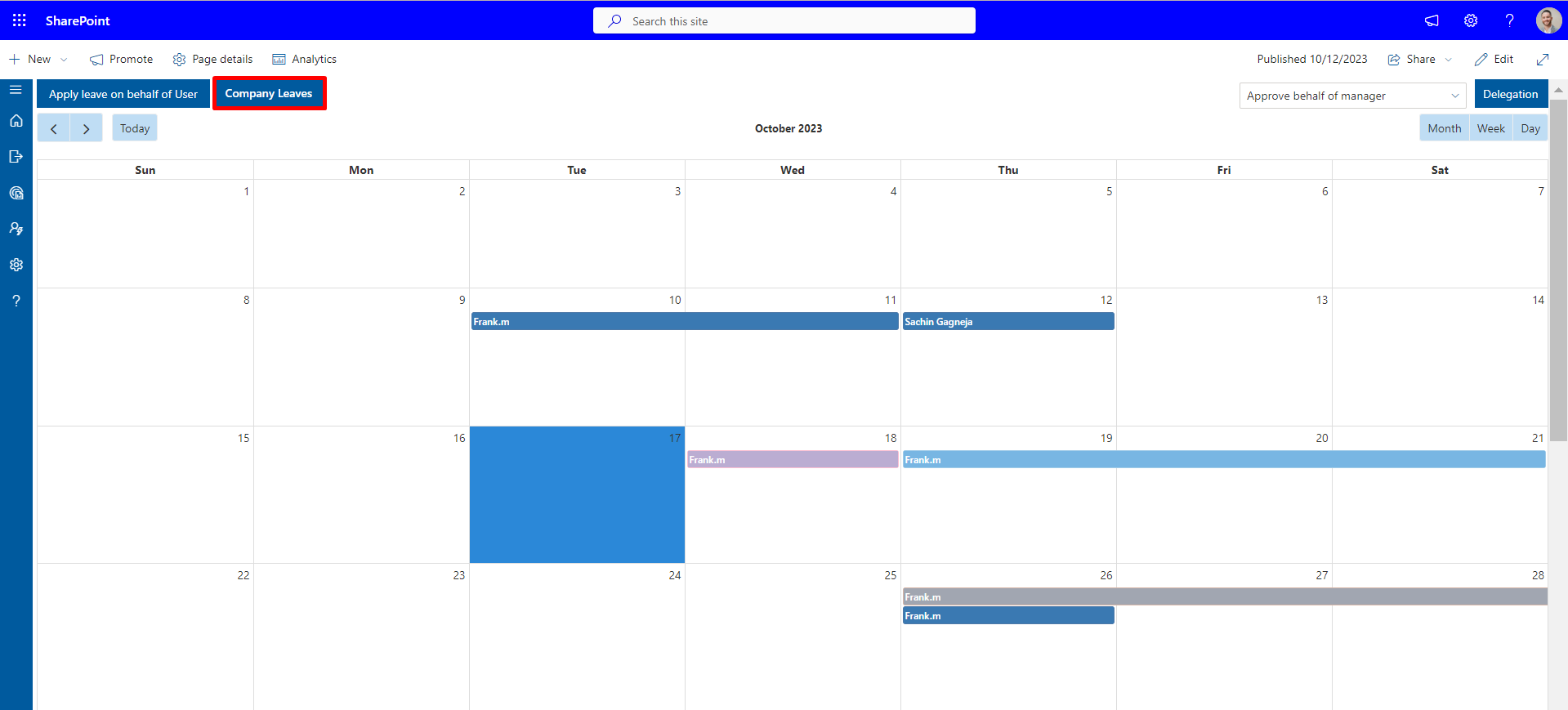
When you have a systematic way of doing things, it is very easy to set up your vacation calendar integration in Outlook. Time off Manager 365 allows you to transition to an automated leave tracking system in a few steps, as compared to the manual one. The following is a step-by-step guide to help you get started:
Step 1: Install Time off Manager 365 from Microsoft AppSource
Begin by navigating to Microsoft AppSource, the official marketplace for Microsoft 365 applications. Go to the search engine and type Time off Manager 365 and then click on Get it now to begin the installation.
Add the application to your Microsoft 365 environment by following the on-screen instructions. Remember that you will require the permission of the administration to install. After installation, the app will be accessible in your Teams and Outlook environment in your organization, and it can be configured.
Step 2: Configure Your Organization Settings
Once installed, log in to the administrative panel to configure the core leave policies and preferences of your organization. This is an important step since it determines the way your leave management system will operate.
You can:
- Set your organization’s working days and business hours to ensure accurate leave calculations
- Define different leave types such as vacation, sick leave, or unpaid leave, along with rules like accrual and carry-forward
- Add public holidays based on your region or multiple locations
- Configure leave approval workflows, whether simple single-level approvals or more complex multi-level structures
Taking the time to properly configure these settings ensures a smooth experience for both employees and managers later.
Step 3: Import Employees
Next, sync your employee data directly from Azure Active Directory (Microsoft Entra ID). This integration will remove manual data entry and minimize the possibility of errors.
Once synced, the system automatically pulls in:
- Employee names and profiles
- Department structures
- Reporting hierarchies
This ensures that your leave requests are automatically aligned with your organization’s structure, making approval workflows more efficient and accurate.
Step 4: Set Leave Entitlements
It is now time to establish the amount of leave that each employee should have. Time off Manager 365 enables you to tailor leave policies according to roles, departments, or types of employment.
You can:
- Assign annual leave quotas for individuals or groups
- Configure carry-forward rules for unused leave
- Set probation period restrictions
- Define minimum notice periods for leave requests
This step ensures that employees always have clear visibility into their available leave balance while helping HR maintain policy consistency.
Step 5: Assign Managers and Approvers
To facilitate the approval process, map employees to their managers or approvers. This makes sure that all leave requests are automatically forwarded to the right individual without the involvement of a human being.
You can also:
- Set up multi-level approvals (e.g., Team Lead → Department Head → HR)
- Assign backup approvers for flexibility
- Customize approval flows for different departments
This structured workflow eliminates confusion and speeds up decision-making.
Step 6: Enable Outlook and Teams Calendar Sync
The ability to integrate with Outlook and Microsoft Teams is one of the most effective capabilities of Time off Manager 365.
By enabling Outlook Calendar Sync, all approved leave requests are automatically added to the shared vacation calendar. This means:
- Managers can instantly see team availability
- Employees can avoid scheduling conflicts
- Meetings are planned with full visibility of absences
This real-time synchronization ensures that everyone stays informed without extra effort.
Step 7: Roll Out to Employees
After all the settings are done, now it is time to present the system to your team. Post a basic announcement and a quick-start guide to make the employees familiar with the platform.
Employees can access Time off Manager 365 through:
- The Microsoft Teams app tab for quick collaboration
- The Outlook add-in sidebar for calendar-based access
- The web portal for full functionality
Because the tool integrates with platforms your team already uses, adoption is typically fast and requires minimal training.
Best Practices for Using a Vacation Calendar in Outlook
Deploying the tool is just the first step. Here’s how to make the most of your vacation calendar setup:
- Enforce a “Submit Early” Culture
Encourage employees to submit leave requests at least 2 weeks in advance for planned vacations. Configure the system to flag or reject requests that don’t meet minimum notice requirements for non-emergency leave. - Keep Leave Policies Transparent
Make your leave policy visible within the platform. When employees can see the rules, entitlements, and balances themselves, HR receives far fewer manual queries. - Use the Calendar View During Sprint Planning and Project Scheduling
Before kicking off a major project or sprint, project managers should check the team vacation calendar to identify coverage gaps. This prevents last-minute scrambles when key team members are out. - Set Overlapping Leave Alerts
Use Time off Manager 365’s conflict detection feature to alert managers when too many team members from the same department are requesting leave simultaneously. This is especially critical for small teams. - Leverage Reporting for HR Strategy
Run monthly or quarterly reports on leave utilization. High unused PTO balances may indicate workload issues or poor leave culture. High absenteeism in specific departments may point to management or wellness concerns.
Features to Look in Vacation Calendar for Outlook
Native Microsoft 365 Integration
The tool should work directly within Outlook and Microsoft Teams without relying on external platforms. It should automatically sync leave data with calendars and user profiles. This ensures a seamless experience and faster adoption across the organization.
Automated Approval Workflows
Manual approval processes often lead to delays and lack of visibility. A good system should support multi-level approvals with notifications and reminders. This helps streamline decision-making and keeps the process structured and transparent.
Real-Time Leave Balance Visibility
Employees should be able to check their leave balance anytime without contacting HR. This reduces administrative workload and improves efficiency. It also builds transparency and trust within the organization.
Conflict Detection
The system should automatically identify overlapping leave requests within teams. Managers should receive alerts to prevent multiple absences at the same time. This helps maintain proper staffing and avoid operational disruptions.
Customizable Leave Policies
Every organization has unique leave rules and structures. The tool should support custom leave types, accrual rules, and carry-forward policies. This ensures the system aligns perfectly with company HR policies.
Mobile Accessibility
Employees should be able to access the system easily from mobile devices. A mobile-friendly interface allows quick leave requests and status tracking. This is essential for supporting remote and hybrid work environments.
Reporting and Insights
The system should provide detailed reports on leave usage and trends. HR teams can analyze data by employee, department, or time period. This enables better workforce planning and informed decision-making.
Data Privacy and Compliance
Employee leave data must be handled securely and responsibly. The system should comply with GDPR and other data protection regulations. This ensures sensitive information is protected at all times.
Scalability
The tool should work efficiently for both small teams and large enterprises. It must handle increasing users without performance issues. This ensures long-term reliability as the organization grows.
How a Vacation Calendar in Outlook Boosts Team Productivity
Beyond tracking who is off, a vacation calendar in Outlook improves visibility, coordination, and overall team efficiency. It helps teams plan better and avoid common workplace disruptions.
Reduces Scheduling Conflicts
When availability is visible in a shared calendar, meetings are planned more effectively. Teams avoid scheduling conflicts with employees on leave. This reduces last-minute changes and improves collaboration.
Improves Work Handover Planning
Advance visibility of leave helps employees prepare handovers. Tasks can be reassigned and deadlines adjusted in time. This ensures smooth workflow even during absences.
Enhances Employee Satisfaction
An easy leave system gives employees better control over their time off. Quick approvals and clear balances reduce confusion. This improves engagement and overall satisfaction.
Saves HR Time
Automating leave requests and tracking reduces manual work. HR teams spend less time on repetitive tasks. This allows them to focus on more important priorities.
Enables Better Resource Planning
Managers can plan work based on team availability. It helps avoid overload and manage workloads efficiently. This leads to better project planning and outcomes.
Conclusion
Managing employee leave becomes easier when everything is handled within Outlook. A centralized vacation calendar improves visibility, reduces conflicts, and helps teams plan work more efficiently.
Time off Manager 365 simplifies the entire process with automation and seamless Microsoft 365 integration. It saves time for HR, gives clarity to employees, and helps managers make better decisions.
Book a demo of Time off Manager 365 and simplify leave management today.
Frequently Asked Questions
What is the best vacation calendar app for Microsoft Outlook?
Time off Manager 365 is widely considered one of the best options because of its native Microsoft 365 integration, automated approval workflows, Outlook calendar sync, and Teams compatibility. For teams already operating in the Microsoft 365 ecosystem, it offers the smoothest experience.
Can I manage team time off directly in Microsoft Outlook?
Yes — with a dedicated add-in like Time off Manager 365, you can manage, approve, and view all team leave requests and absences directly from within Outlook, without switching to an external tool.
Does Outlook have a built-in vacation tracker?
Microsoft Outlook includes a basic “Out of Office” auto-reply feature but does not have a built-in PTO tracker or leave management system. You need a third-party integration like Time off Manager 365 for full leave management functionality.
How does a vacation calendar in Outlook help HR teams?
It automates leave request workflows, tracks leave balances, surfaces leave reports, and keeps all leave data in a centralized, auditable system — dramatically reducing manual HR administration.
Is Time off Manager 365 suitable for small businesses?
Yes. Time off Manager 365 offers pricing tiers suitable for small teams starting from as few as 5 users, making it accessible for small businesses that want professional leave management without enterprise software complexity.


_JiluXJRGNl.svg)