
SharePoint Expense Reimbursement and Approval list Software

Key Takeaways
- A SharePoint expense reimbursement approval list turns scattered receipts and email threads into one tracked, searchable record inside Microsoft 365.
- Native SharePoint lists work for very small teams, but most companies outgrow them within months because there’s no built-in routing.
- Expense Tracker 365 adds the missing pieces automated routing, receipt capture, spend limits, and dashboards.
- The right setup pays for itself by cutting the hours finance spends chasing approvals, fixing miscoded expenses, and rebuilding spreadsheets at month-end.
Open any finance team’s inbox and you’ll usually find the same thing: a folder full of receipt photos, a string of “any update on this?” emails, and a spreadsheet someone updates by hand once a week.
None of this is anyone’s fault it’s just what happens when expense tracking is built on tools that were never designed for it.
A lot of companies already pay for Microsoft 365, which means a working answer is sitting right there in SharePoint.
This guide walks through what a SharePoint expense reimbursement approval list is and closes gaps that show up the moment more than a handful of people start submitting claims.
What Is a SharePoint Expense Approval List?
A SharePoint expense approval list is a structured list (or a set of connected lists) inside a SharePoint site where employees log their spending and route it for sign-off. Instead of a paper form or a one-off email, each expense becomes a list item with its own set of columns, and its own approval history.
A basic version usually tracks:
- Employee name, department, and submission date
- Expense category (travel, meals, supplies, client entertainment, and so on)
- Amount, currency, and vendor
- A receipt or invoice attached as a file
- An approval status column: Pending, Approved, Rejected, or Needs Revision
- A field for the manager’s comments
This sounds simple, and for a five-person team it usually is. The trouble starts once you need conditional routing (a $50 lunch and a $5,000 conference don’t need the same sign-off chain), policy checks, or a report that finance can use without exporting and re-formatting in Excel every time.
Why a SharePoint-Based Expense Approval Process Is Important?
Companies don’t choose SharePoint for expense tracking because it’s the flashiest option. They choose it because it removes a layer of friction that comes with adding yet another standalone app.
- It lives where employees already work: If your team is already in SharePoint, Teams, and Outlook all day, an expense list doesn’t ask anyone to learn new software or remember another login.
- Permissions are already set up: SharePoint inherits your organization’s existing security groups and access controls, so you’re not rebuilding a permissions model from scratch the way you would with a third-party app.
- Records stay where compliance teams expect them: Files, approvals, and timestamps sit inside Microsoft 365, which simplifies retention policies, eDiscovery, and audits especially for regulated industries.
- Designed for scalable operations: Organizations already invested in Microsoft 365 can add expense management without introducing another per-user software subscription, making it easier for HR and finance teams to scale efficiently.
- It connects to the rest of Microsoft 365 naturally: Power BI for reporting, Power Automate for routing, Teams for notifications, OneDrive for receipt storage, they all talk to SharePoint without custom integration work.
The catch is that “SharePoint can do this” and “SharePoint does this well out of the box” are two different claims. A native list gets you data storage. It does not get you policy enforcement, smart routing, or a dashboard a CFO would want to look at. That gap is exactly where most teams either give up and go back to spreadsheets or look for a layer built specifically for expense management.
What People Actually Ask About SharePoint Expense Tracking
Browse a few threads on r/sharepoint or r/MicrosoftFlow and a handful of questions come up repeatedly:
- “Can I make a manager approval depend on the dollar without writing a giant nested condition?” Yes, but in plain Power Automate, every new threshold means another branch to maintain by hand.
- “How do I stop people from submitting a claim without a receipt attached?” Native SharePoint forms don’t enforce conditional required fields well; people get around them more often than you’d expect.
- “Is there a way to show a manager a running total instead of one item at a time?” Not without building a separate calculated view or exporting to Power BI.
- “My Power Automate flow broke after the person who built it left the company. Now what?”. This is one of the most common complaints, and it’s the strongest argument for using a maintained, no-code solution instead of a single custom flow only one person understands.
These aren’t edge cases they’re the standard list of things a growing team runs into within the first year of using a homemade SharePoint expense management setup.
SharePoint Expense Tracker vs. Traditional Expense Management
| Capability | Expense Management on Third-Party Platforms | SharePoint-Native Expense Tracker (Expense 365) |
| Microsoft 365 experience | Connects to Microsoft 365 through integrations | Built directly into the Microsoft 365 ecosystem |
| Where employees work | Users switch between multiple applications | Employees work within SharePoint and Microsoft Teams |
| Expense data | Stored in the vendor’s cloud platform | Stored securely in your SharePoint environment |
| Security & permissions | Managed using the vendor’s security model | Uses your existing SharePoint and Microsoft 365 permissions |
| Compliance & governance | Depends on vendor capabilities | Leverages existing Microsoft 365 compliance and governance policies |
| Administration | IT manages another business application | Managed within your existing Microsoft 365 tenant |
| Receipt storage | Receipts stored in the vendor application | Receipts stored in SharePoint document libraries |
| Employee adoption | Users learn another interface | Familiar Microsoft 365 experience reduces training |
Key Features of SharePoint Expense 365
Expense 365 is built to sit on top of SharePoint and handle the parts that a plain list can’t.
AI Receipt Management
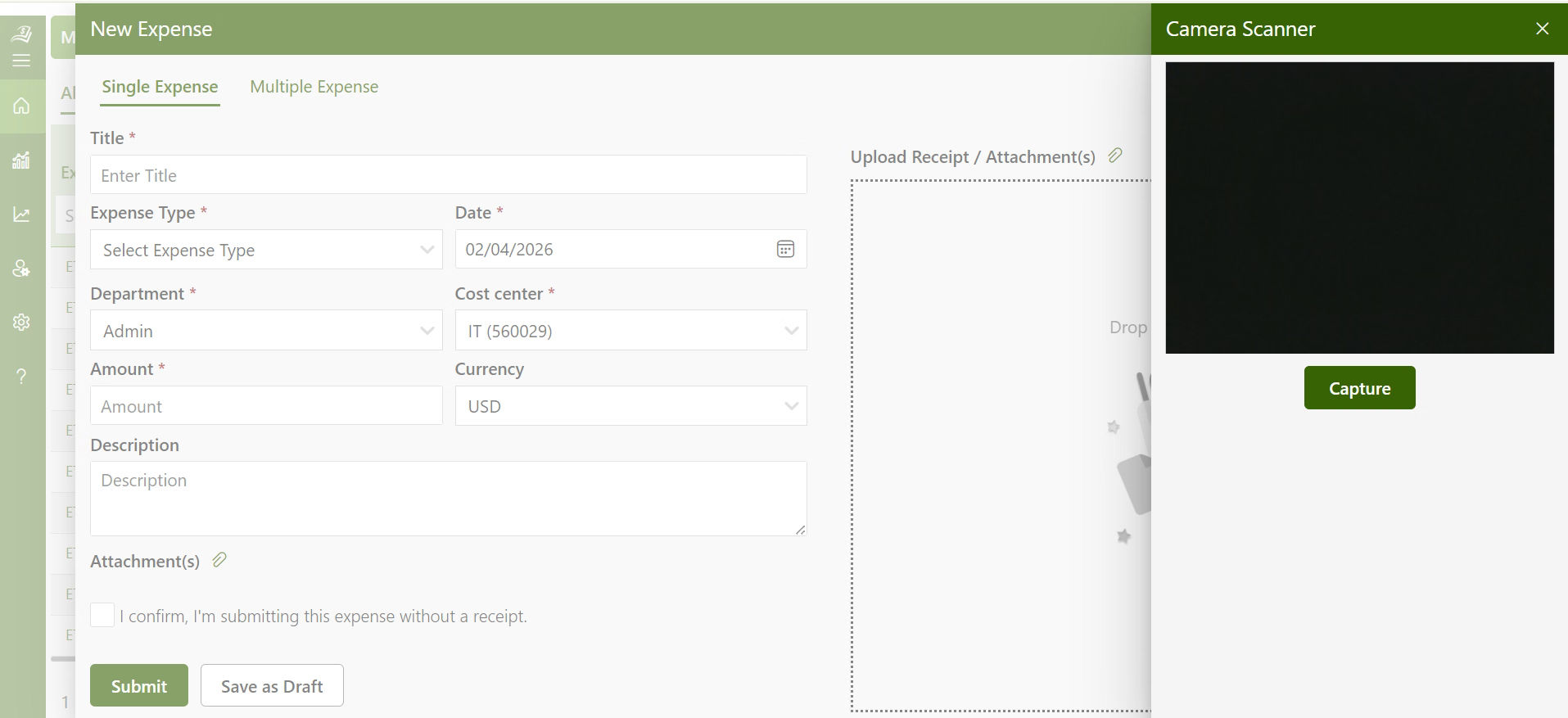
Employees can upload a receipt from their phone or desktop, and the AI automatically scan the receipt and extract key details. Instead of manually entering every field, users simply review the extracted data before submitting the expense. Finance teams receive both the receipt image and structured expense information, making verification faster while reducing data entry errors.
Approval Workflows
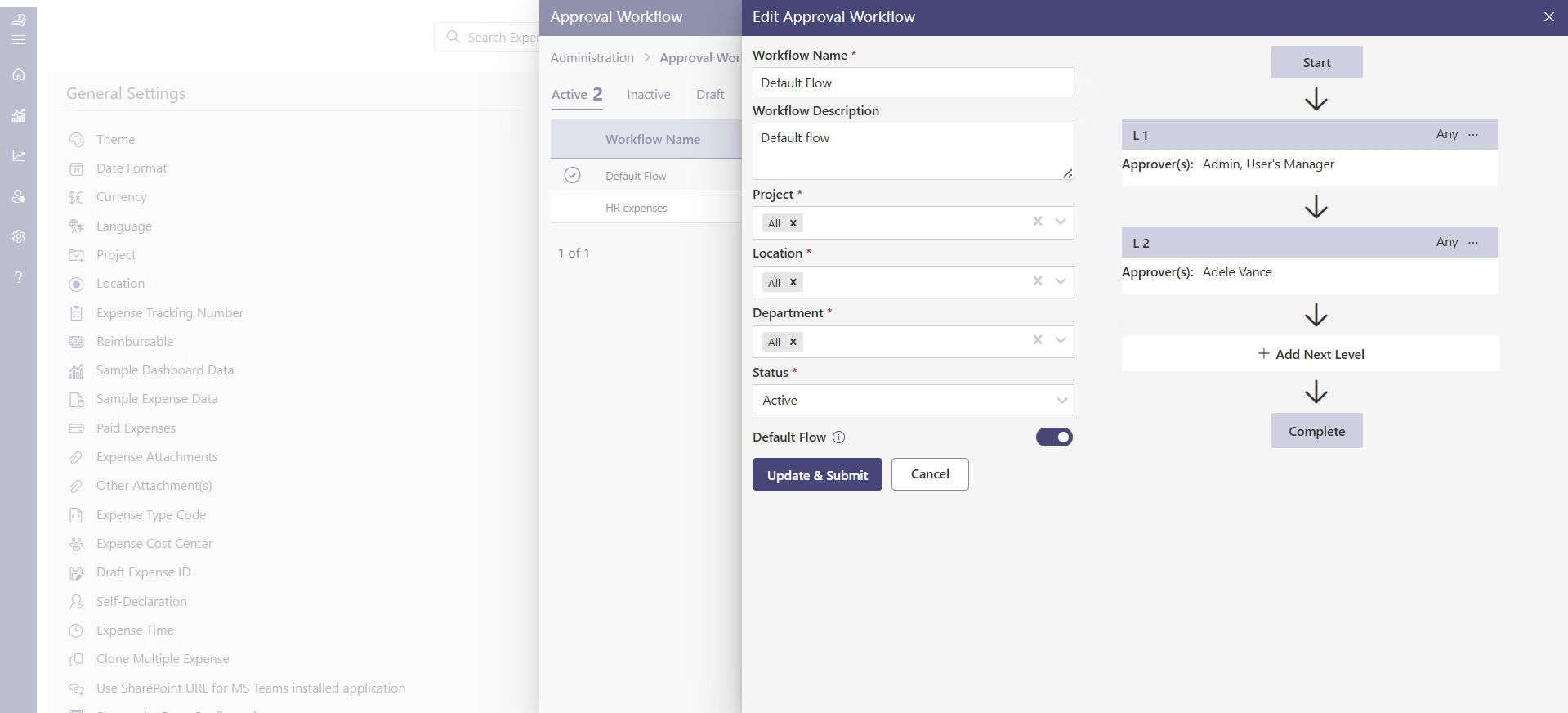
Expense approval workflows adapt to your organization’s expense policies rather than forcing every claim through the same process. Expenses can be routed based on department, employee, project, category, location, or claim amount. Managers receive notifications when action is required, while employees can monitor the status of every submission without sending follow-up emails.
Reimbursement Management
Once an expense is fully approved, finance teams have a centralized view of claims ready for reimbursement. Approved expenses can be filtered by employee, payment status, department, or reporting period, making it easier to process expense reimbursements in batches. Employees can track whether a claim is pending approval, approved or reimbursed.
Submission
Employees can log several line items a flight, a hotel night, two meals inside a single report instead of creating a separate list item for every receipt. The form pulls in their name, department, and email automatically from their SharePoint profile. Categories are color-coded and configurable, so “Travel” looks different from “Office Supplies” immediately, and recurring costs like mileage or per diem have their own pre-built entry types.
Ready to build a travel program that works?
Expense 365 brings policy management, approval workflows, expense tracking, and reimbursements into one place built natively for Microsoft 365.
Routing and Workflow
Reports route themselves to the right manager based on rules you set once department, amount, category, or any combination. A $40 lunch claim and a $3,000 client trip don’t have to follow the same path; high-value items can require a second sign-off automatically. Assistants or team leads can also submit on behalf of someone else, which matters more than it sounds like it would for busy executives.
Reporting
Dashboards built into SharePoint show spending by department, employee, category, or time without anyone exporting to Excel. Finance can filter by date range or project, pull a quarterly summary in a couple of clicks, and spot patterns like one department consistently.
Validation and Policy Control
Required fields are enforced before submission, so an approver isn’t rejecting a claim three days later because the date field was left blank. Spending caps can be set by role or category, and anything that breaks expense policy missing receipt, gets flagged automatically. Every approval carries a digital signature and a timestamp, which matters a lot when an auditor asks for proof six months later.
Administration
None of this requires a developer. Forms, categories, approval chains, and validation rules are all changed through configuration screens. Access is controlled through SharePoint’s existing permission model, so HR sees what HR should see and nothing more. The whole thing works the same on a phone browser as it does on a desktop.
Benefits of SharePoint Based Expense Tracker
A SharePoint expense tracker provides a centralized way to capture, approve, and monitor business expenses without leaving the Microsoft ecosystem. From automated workflows to real-time reporting, it helps finance teams improve efficiency while giving employees a familiar experience.
Faster Reimbursement Cycles
Manual expense approvals often slow reimbursements because claims wait in email inboxes or require multiple follow-ups. Automated workflows route each expense to the right approver based on predefined rules, reducing delays for employees receive reimbursements. This improves employee satisfaction while allowing finance teams to process reimbursements efficiently.
Fewer Errors and Rejected Claims
Incomplete expense reports create unnecessary back-and-forth between employees, managers, and finance teams. Built-in validation checks required fields, receipt availability, spending limits, and company policies before submission. As a result, approvers spend less time reviewing incomplete claims and more time making informed decisions.
Complete Audit Trail for Compliance
Every action from expense submission and receipt upload to approvals, rejections, and reimbursements is recorded with timestamps and user information. This creates a transparent audit trail that simplifies compliance reviews and makes it easier. Having complete historical records also strengthens accountability across the expense approval process.
Real-Time Expense Visibility
Finance teams no longer need to consolidate spreadsheets from different departments to understand company spending. Interactive dashboards provide real-time insights into expenses by employee, department, project, category, or reporting period, enabling faster financial analysis. Decision-makers can identify spending trends early and take corrective action before budgets are exceeded.
Improved Policy Compliance
Expense policies are applied consistently across the organization through configurable approval rules and automated policy checks. Expenses that exceed thresholds or violate company guidelines are identified immediately, reducing compliance risks before reimbursements are processed. This creates a standardized approval process that is applied consistently across every department.
Centralized Receipt Management
Receipts, invoices, and supporting documents are stored alongside expense records in SharePoint. Employees and finance teams can quickly locate supporting documents without searching through email attachments or shared folders. Centralized receipt management also simplifies record retention and makes information easier to retrieve whenever needed.
Lower Administrative Overhead
Organizations already using Microsoft 365 can manage expenses within their existing SharePoint environment instead of introducing another standalone application. This reduces administrative effort, minimizes platform switching, and helps IT teams manage one unified ecosystem. It also reduces the time spent maintaining multiple systems, user accounts, and integrations.
Better Employee Experience
Employees can submit expenses, upload receipts, check approval status, and monitor reimbursement progress from a familiar SharePoint or Microsoft Teams interface. This reduces training requirements and improves adoption across the organization. A familiar user experience encourages faster submissions and reduces support requests from employees.
Best Practices to Manage Approvals Inside SharePoint
Effective approval management goes beyond routing requests to the right person. Following a few best practices can help organizations reduce delays, improve compliance, and keep approval workflows running efficiently within SharePoint.
- Standardize approval workflows across departments: Create consistent approval processes for expense claims, purchase requests, leave applications, and other business workflows to reduce confusion and improve compliance.
- Define approval levels based on business rules: Route requests according to factors such as department, request type, project, or monetary value so that approvals reach the appropriate decision-makers automatically.
- Set mandatory validation rules before submission: Require essential information, supporting documents, and mandatory fields to be completed before a request enters the approval process, reducing delays caused by incomplete submissions.
- Automate notifications and reminders: Send automatic alerts to approvers for pending requests and reminders for overdue approvals to keep workflows moving without manual follow-ups.
- Maintain a complete audit trail: Record every submission, approval, rejection, comment, and modification with timestamps to support compliance, reporting, and future audits.
- Use role-based permissions: Limit access to requests, approvals, and sensitive business information using SharePoint’s permission model so employees only see data relevant to their roles.
- Monitor approval performance with dashboards: Track approval turnaround times, pending requests, rejection rates, and workload distribution to identify bottlenecks and improve operational efficiency.
- Review and optimize workflows regularly: As business processes evolve, periodically update approval rules, spending thresholds, approvers, and workflows to keep them aligned with organizational policies and growth.
Expense 365: Why Is It Best for SharePoint Users
Expense Tracker 365 is an AI-powered expense management solution built specifically for Microsoft SharePoint. It works with both SharePoint Online and on-premises environments, using your existing Microsoft 365 users, permissions, and document libraries.
Employees can submit expenses, upload receipts, and let AI automatically extract key details, reducing manual data entry and improving accuracy. Automated approval workflows, real-time reporting, and complete audit trails help finance teams process claims faster while maintaining compliance.
The solution is easy to configure without coding. You can customize approval workflows, expense categories, and business rules to match your organization’s policies, making it a scalable solution for businesses of all sizes.
Conclusion
A SharePoint expense reimbursement approval list solves a real problem, getting expense claims out of inboxes and spreadsheets and into one trackable system. A native list with a basic workflow can get a small team started, but it tends to break down the moment routing gets more complicated.
If you’re currently weighing a custom Power Automate build against a ready-made solution, it’s worth testing Expense Tracker 365 against your own approval scenarios before committing engineering time to either.
Frequently Asked Questions
Can I automate approvals in a native SharePoint list?
Yes, using Power Automate. You can set up routing, so a claim goes to a manager automatically and the status updates when they respond. For anything beyond simple, single-tier approvals, most teams add a tool like Expense 365 to handle conditional routing and validation without custom flow-building.
How do approvers get notified about a pending claim?
Email notifications go out the moment a claim is submitted, and approvers can act on it directly from their inbox, a Teams card, or the SharePoint dashboard, depending on how the workflow is set up.
Does SharePoint expense management work for international teams?
Yes, if multi-currency and category fields are configured correctly. Expense Tracker 365 supports custom categories and field validation, which makes it easier to adapt to different regions, currencies, and reimbursement policies within one system.
Does the system support conditional approvals?
Yes. Approval paths can change based on conditions such as department, expense amount, request type, or employee role.
Can different departments have different approval workflows?
Yes. Each department can have its own approval process based on organizational requirements.


_JiluXJRGNl.svg)